 Best solutions for Password Recovery and Data Recovery
Best solutions for Password Recovery and Data Recovery
Best solutions for Password Recovery and Data RecoverySo you lost your Windows password and looking up for an available method to reveal your Windows password. In fact, reveal a Windows password is a little hard presently. So you may think about how to reset the password. However, have you thought of removing it? Here are some tricks can be used to remove Windows 7/Vista/XP password instantly. Then you can login to your user account without password and don't worry about forgetting it again.
If you have another administrator user account, you can easily remove Windows 7/Vista/XP password. Here take Windows 7 for example to show you how to remove Windows 7 password.
1. Login Windows 7 administrator account.
2. Open control Panel - User Accounts - Manage Account.
3. Click a password protected user account you wanna remove its password.
3. Click Remove password option.

In Windows XP, there is a built-in administrator account was created automatically with blank password when you installed the system, so we can remove Windows XP password by using this account. However, this account was disabled by defult when we installed Windows 7 and Vsita.
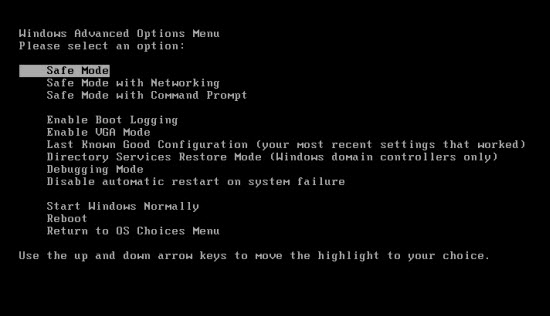
1. Press F8 immediately when you restart Windows XP until the Advanced Option appears. Select Safe Mode option and press Enter, it will start Windows XP in Safe Mode.
2. Then a login dialog appears, type Administrator in the username box and leave the password box for blank, click OK.
3. After successfully login to Safe Mode, open Control Panel - User Accounts and click your user account you wanna remove its password.
4. Click Remove the password option. It is very easy.

To remove Windows password you may know that we don't lose any files or change computer setting after removing the password. Is there a safe way can accomplish this? Yes, Asunsoft Windows Password Reset can easily remove Windows 7/Vista/XP password with nothing lost. All your files and personal imfomation will be remained after you successfully remove your Windows login password. It is a fast and universal Windows Password Remover tool that you can use it to remove any Windows password within several minutes. Here I will show you how to remove Windows 7 password with this Windows Password Remover tool.
Step 1: Download and install Windows Password Reset Advanced on any other computer.
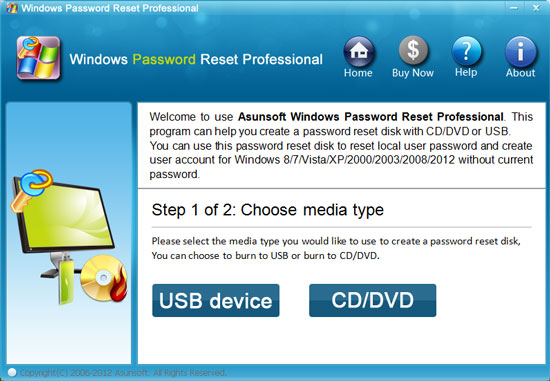
Step 2: Run the software to create a Windows password remove disk with CD/DVD or USB.
1. Plug in a bootable USB Flash Drive and select USB Device.
2. Select your drive name from the pull-down list.
3. Click Begin Burning button, the burning process starts.
4. Burning completed successfully, take out your USB and transfer it to your locked PC.
Step 3: Set your computer to boot from USB.
Please refer to How to set computer to boot from USB Drive.
Step 4: Remove Windows 7 password.
After booting from USB, "Windows Password Reset" universal password remover will start and display a friendly interface.

1. Click an user account from the user list. All user accounts of WIndows 7 will be listed.
2. Click Reset Password, when a confirm dialog pops up, click Yes.
3. Password has been removed and shown "blank" in the password row. Click Reboot. When a confirm dialog appears, eject Windows password recovery disk, and click Yes. After restarting, you can login Windows 7 without password.