 Best solutions for Password Recovery and Data Recovery
Best solutions for Password Recovery and Data Recovery
Best solutions for Password Recovery and Data RecoveryForgot your Windows XP administrator password? Thankfully there is other user account you can login in your XP computer, so you neglect it. That seems fine and not a big deal. But when you have to install software or are under some other occasions, you need to login as an administrator. Then how to reset your Windows XP administrator password when you lost or forgot it? Take it easy and choose one from the four I am going to introduce to you. You can also refer to Brilliant Ideas to Reset Forgotten Windows XP Password to reset your Windows XP administrator or other user password.
If your administrator account is not the only one account in your Window XP computer and there are other user accounts you can login in, congratulations, you have great chance to reset your Windows XP administrator password quite easily.
1. Start your Windows XP and login to the accessible user account.
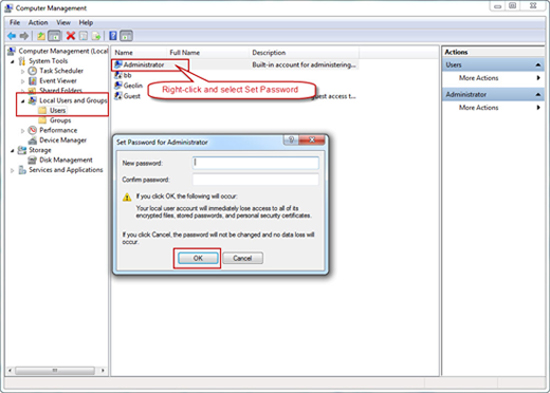
2. After you login in, you right-click My Computer icon and select Manage item to enter Computer Management screen.
3. Then in the left pane, select Local User and Groups and then open Users folder.
4. In the list of all user account, you right-click on the Administrator and select Set Password item.
5. Type in and confirm the new password and then click OK to finish.
With this method, you can have slight chance to reset your Windows XP administrator password if your built-in administrator password hasn’t been changed. You can operate as below:
1. Start your computer normally and when it comes to the login screen, you simply press Alt + Ctrl + Delete twice.
2. You will be presented with a login box. You type in Administrator in the username box and leave the password box empty. Press Enter.
3. After you have login to your Windows XP successfully, you can reset your Windows XP password from Control Panel simply.
Besides, Safe Mode can also allow you to reset Windows XP administrator password with several type of Command Prompts. Let’s check out.
1. Start your Windows XP normally and when it starts up, you press F8 key repeatedly as soon as possible and enter Safe Mode.
2. When your Windows XP is in Safe Mode, you can open up Command Prompt by clicking Start button and choosing Run item.
3. When the Run box appears, you can type cmd.exe or lusrmgr.msc command in the run box.
If you type in cmd.exe command, do as follows:
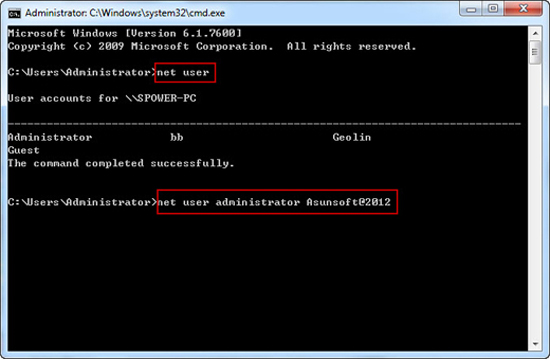
3.1 You type in net user command and press Enter when the cmd.exe window appears.
3.2 When all user accounts are listed, you type in net user Administrator new-password, for example you type in net user Administrator Asunsoft@2012 to reset your administrator password to Asunsoft@2012 and press Enter.
If you type in lusrmgr.msc command, do as follows:
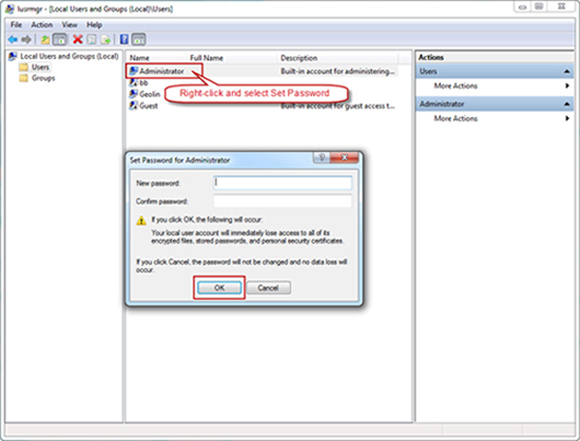
3.1. When Local Users and Groups window appears, you open Users folder.
3.2. When all the user accounts are listed, you right click Administrator and select Set Password item.
3.3. Type in and confirm the new password and then click OK button to save the change.
To reset Windows XP administrator password, Asunsoft Windows Password Reset Personal can fix most easily. If the above several don’t work for you, this one would be determined to be effective. You can operate as follows:
1. Create a Windows XP password recovery disk with Asunsoft Windows Password Reset Personal.
1.1. Download Windows Password Reset Personal and install it on any computer you can access as administrator.
1.2 Plug in a USB flash drive or CD/DVD disk and run the software. Choose USB device or CD/DVD option as the media type to burn.
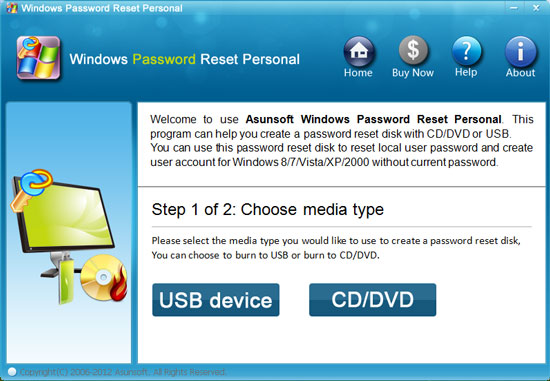
1.3 Specify the USB drive name or CD/DVD disk name from the pull-down list and click Begin burning button to start burning. When the burning process is finished, you created a Windows XP password recovery disk successfully.
2. Set your Windows XP boot from the created password recovery disk by changing its device boot order from BIOS setup utility. As for how to boot your computer from the recovery disk, details you can refer to:
How to boot from USB flash drive
How to boot from CD/DVD-ROM
3. Reset Windows XP administrator with a few clicks.
3.1 Select the Administrator in the user list.
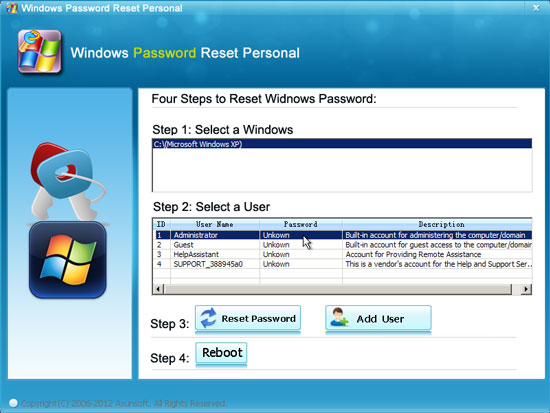
3.2 Click Reset Password button and click Yes to continue when a message pops up.
3.3 When your administrator password has been reset as Blank, you click Reboot button to restart your computer. When another prompt message pops up, you remove your USB flash drive or CD/DVD disk and click Yes to continue restarting your computer.
After your computer restarts, you can login to your administrator account without a password.
Windows Password Reset Personal
Only $17.95


Video Demo: