 Best solutions for Password Recovery and Data Recovery
Best solutions for Password Recovery and Data Recovery
Best solutions for Password Recovery and Data RecoveryForgot Windows Server 2003 local or domain user password? You can easily reset it with the help of your administrator. But if you have forgotten Windows Server 2003 local or domain administrator password, sadly, you can ask nobody to reset it for you. Then how can one reset Windows 2003 administrator password? I guess Asunsoft Windows Password Reset Advanced is what you might need.
Asunsoft Windows Password Reset Advanced, the most advanced version of Asunsoft Windows Password Reset, distinguishes itself from the other two versions in that it supports resetting all Windows local and domain passwords, administrator or other users. In this article, I will illustrate how to use it to reset Windows Server 2003 administrator password.
Step 1: Download and install Windows Password Reset Professional on anther computer you can login as administrator.
Download Asunsoft Windows Password Reset Advanced from its official website http://www.asunsoft.com/windows-password-reset/advanced.html and install it on an accessible computer.
Step 2: Run the software to create a password recovery disk with CD/DVD or USB.
Note: You have to do this on another computer.
Option 1: Create a password recovery disk with USB.
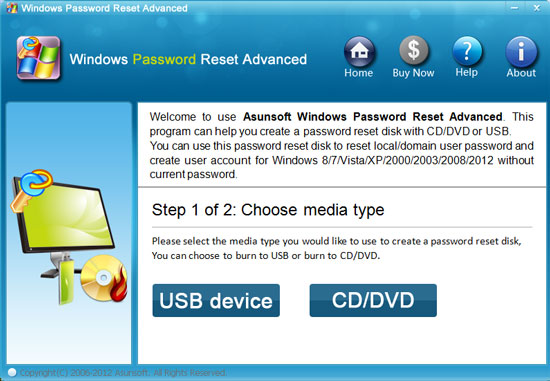
1. Plug in a writable USB Flash Drive. Run the software and when its main interface appears, you choose USB Device.
2. In second step, select you drive name from the pull-down list. Click Begin Burning button, the burning process will start.
3. Burning completed successfully, take out you USB Flash Drive.
Option 1: Create a password recovery disk with CD/DVD.
1. Plug in a writable CD/DVD. Run the software and when its main interface appears, you choose CD/DVD.
2. In second step, select you drive name from the pull-down list. Click Begin Burning button, the burning process will start.
3. Burning completed successfully, take out your CD/DVD.
Step 3: Plug in the newly created password recovery disk to your locked computer, boot the computer from CD/DVD or USB.
Start your locked Windows Server 2003 and press BIOS entry key as soon as possible to get into the BIOS SETUP table, change the devices boot order, After you saving the change, your computer will restart automatically and boot from your recovery disk.
 I created a Windows password recovery disk with CD/DVD
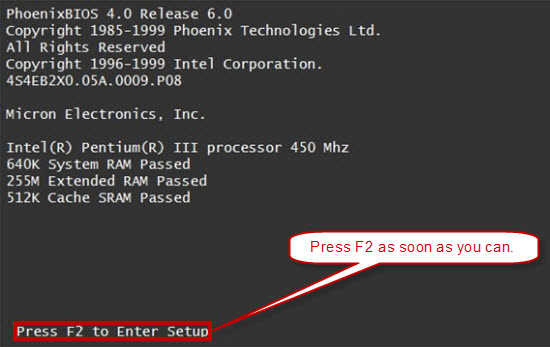
1. Insert your CD/DVD Windows Password Recovery Disk. Start/Restart your computer and press F2/DELETE(BIOS Entry KEY) immediately and repeatedly until the SETUP table pops up.
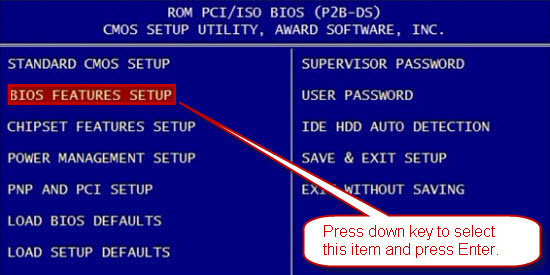
2. BIOS(COMS) setup main menu appears, now you can use up/down key to choose BIOS FETURES SETUP. Hit Enter key to enter BIOS FEATURES SETUP table.
3. Press ↑/↓key to highlight Boot Sequence and hit Enter, choose A, CDROM, C for the Boot Sequence device. Then press F10 to save your setting and reboot your computer. Your computer will boot from your Windows password recovery disk.
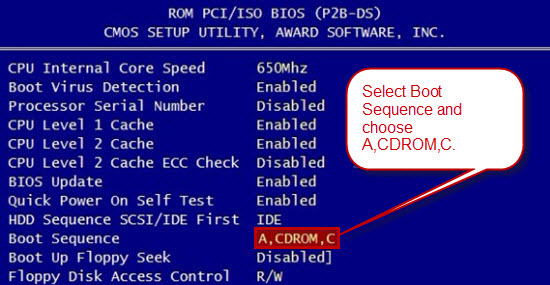
More examples: How to Boot from CD/DVD-ROM
I created a Windows password recovery disk with USB flash drive
Plug in your Windows password recovery disk you have created with USB Flash Drive and set your computer to boot from USB. If your BIOS version is AMI, follow the procedures. It is easy and important.
1. Press F2/Delete (BIOS Entry Key) as soon as you can while your PC reboots until the BIOS SETUP screen appears.
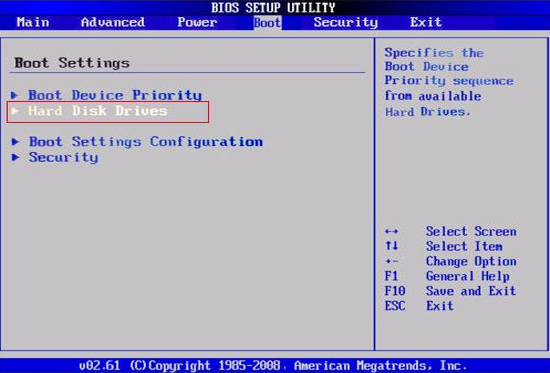
2. Looking for a tab relating to booting in the BIOS SETUP screen, it is called "Boot" in this example. You can use ←/→ key to select and open it. You'll see a submenu that's specific to the PC Drive boots sequence. Use ↓/↑key to highlight "Hard Disk Drives", hit "Enter".
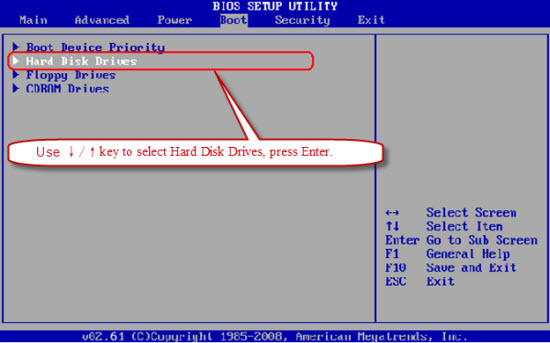
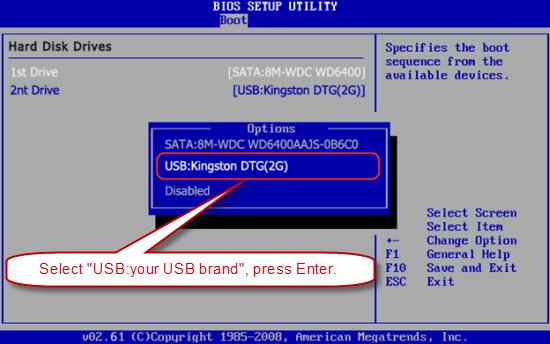
3. Use ↓/↑key to select "1st Drive", hit "Enter" key.
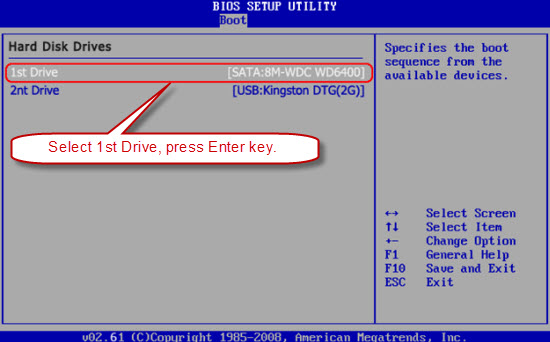
4. Go on enter Boot Settings, then the Boot Device Priority item.
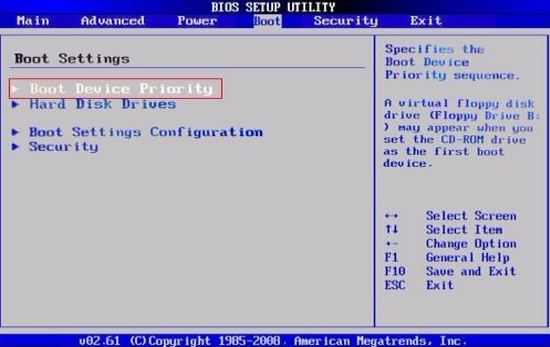
5. Enter Hard Disk Drives.
5. Select "USB: your USB brand", and press "Enter" key to set the USB Flash drive as the first bootable option.
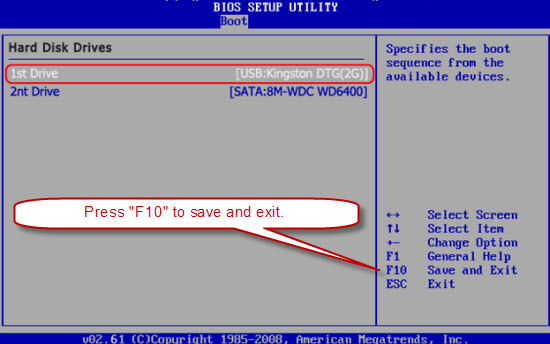
6. Then you can see USB Flash Drive is the first boot device.
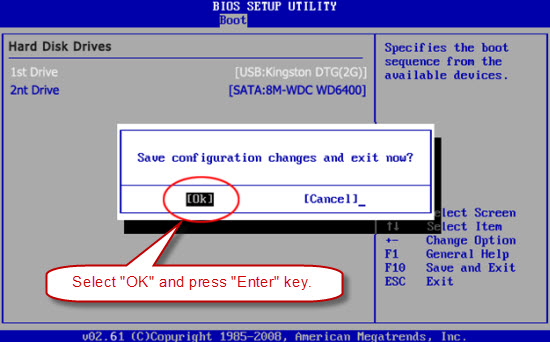
7. When you done the operations, press "F10" to save and exit. Select "OK" and press "Enter" key, then the computer will reboot and boot from USB Flash Drive(your Windows password recovery disk).
More examples: How to Boot from USB
Step 4: Reset Windows server 2003 local or domain administrator password by a few clicks.
When your Windows Server 2003 has booted from the reset disk, the software will start automatically in your Windows Server 2003 and now you can reset your administrator password in 4 small steps:
1. Select the Windows Server 2003 as the system to reset its password if there are several Windows system installed in your computer. All Windows system will be shown in list.
2. Click Administrator from the user list. All user accounts of your Windows will be listed.
3. Click Reset Password button and click Yes when a confirm dialog pops up to reset user's password, then you can reset other users' password as well.
4. After you click Reset Password, you will found that the password of your administrator is reset as Asunsoft@2012 by default. And now you can click Reboot button to restart your Windows Server 2003. Extract your USB or CD/DVD and click Yes to confirm to restart when another confirm dialog pops up to remind you whether restart now.
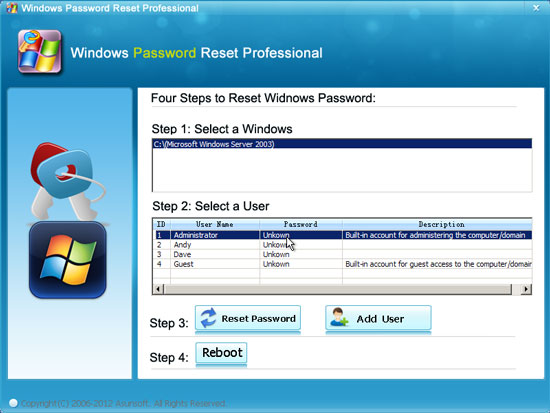
Tips: Windows Password Reset Advanced also allows you to create a new local administrator account without logging. You can click Add User button to add a new user(Administrator) then you can login your locked computer with this new account. Refer to Create a new user section for more information.
When you restarts your Windows Server 2003, you can login in with the newly reset administrator password or with newly created administrator account.
Windows Password Reset Professional
Only $27.95


Video Demo: