 Best solutions for Password Recovery and Data Recovery
Best solutions for Password Recovery and Data Recovery
Best solutions for Password Recovery and Data Recovery
October 31, 2013 5:26 PM / Posted by Geolin Lee to Password Recovery
Follow @GeolinLee
Microsoft released its long-awaited Windows 8.1 upgrade as a free download from Oct. 18th. Some users cannot wait to have a try for it, but depressingly caught into the trouble of forgetting Windows 8.1 password. The Windows 8.1 operating system is so dramatically different with its former siblings and it is just released recently, so is there a way that can live up to reset forgotten Windows 8.1 local administrator and user password for all computer brands commonly? You are in the right place, this article introduces a way to users which can crack Windows 8.1 forgotten password on any laptop or desktop. That is Asunsoft Windows Password Geeker.
Asunsoft Windows Password Geeker Advanced is an all-in-one application that can help users easily reset forgotten or lost local or domain administrator/user password. It supports password reset for all Windows systems including Window 8.1, 8, 7, Vista, XP and Windows Server 2012, 2008, 2003 and 2000. Besides it has high compatibility which allows it to work perfectly on almost all universal computer brands. In addition, it is easy-to-use and quick to reset for its concise steps. Now let’s check.
Step 1: Preparations of Password Reset. Good beginning is the half of success. Before you start to reset your forgotten Windows 8.1 password, you first of all make sure that there is another computer you can login to as an administrator and an available USB flash drive (about 2G) or CD/DVD disk. When these are prepared, you download the Asunsoft Windows Password Geeker Advanced from its official website http://www.asunsoft.com/windows-password-geeker.html and install it on the computer you prepared.
Step 2: Create a Bootable Windows 8.1 Password Reset Disk. When it is installed, you plug in your USB or CD/DVD disk into the computer, run the software to burn it to the USB or CD/DVD to create the bootable Windows 8.1 password reset disk.
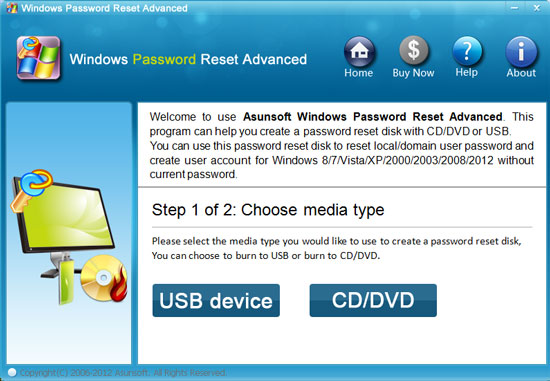
First choose USB device or CD/DVD as the media type to burn.
Then specify your USB or CD/DVD drive name from the pull-down list and then click Begin Burning to burn.
When the burning process is 100% completed, you take out your USB flash drive or CD/DVD disk.
Step 3: Crack Forgotten Windows 8.1 Password. Transfer the created bootable password reset disk into your locked laptop/desktop. Start your laptop/desktop and set it boot from the bootable USB flash drive or CD/DVD disk by changing Device Boot Order from BIOS setup utility. As for specific operations, you can refer to the following two links:
How to boot from USB flash drive
How to boot from CD/DVD-ROM
After your laptop/desktop booted from the bootable USB or CD/DVD loaded with Asunsoft Windows Password Geeker Advanced, the software will start automatically on your locked computer, and now you can reset/crack your forgotten Windows 8.1 password following the on-screen guides.
3.1. Select the user account from the user list that you forgot its password.
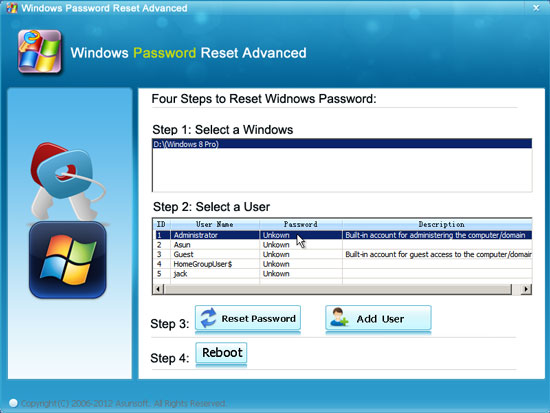
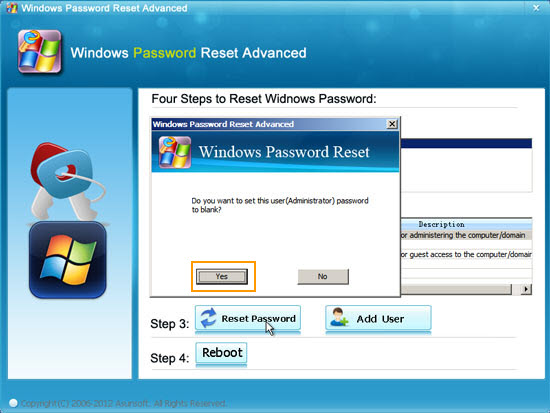
3.2 Click Reset Password button to reset. Click Yes to continue when a confirm message pops up.
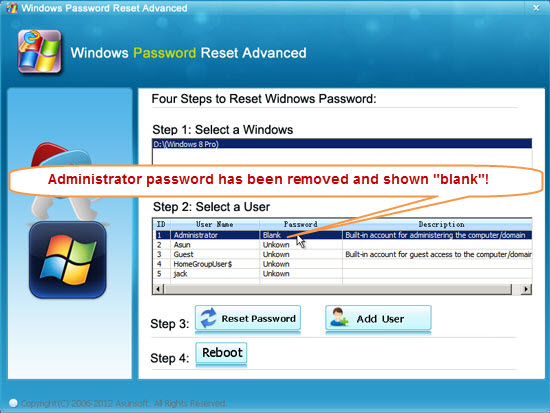
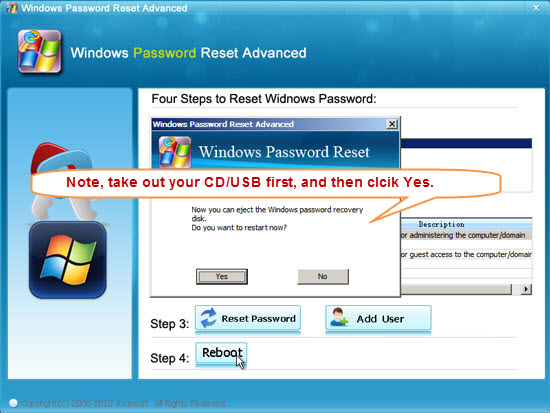
3.3 When its password has been reset as Blank, you click Reboot button to restart your computer.
When a confirm message pops up, you take out your USB or CD/DVD first and then click Yes to continue restarting.
When your laptop/desktop restarts, you can login to it without a password.
Besides removing its password, it also supports cracking your forgotten Windows 8.1 password by creating a new administrator account offline to login in to your locked computer. Just click Add User button and then type in the User Name and its Password, and then click OK to save it to the user list. Lastly you restart your computer, and you can login to your locked laptop/desktop with the new user name and new password.