 Best solutions for Password Recovery and Data Recovery
Best solutions for Password Recovery and Data Recovery
Best solutions for Password Recovery and Data RecoveryCarefully consider, in our daily work, using a computer is nothing more than Windows and some frequently-used Microsoft Office programs such as Word, Excel, PowerPoint, RAR, ZIP, PDF, Outlook and Access etc. we deal with at least one of which almost every day. When we use them to record or store important data, they also allow us to set a password. Then one problem would emerge that it is unavoidable that we may forget its or their password. Thinking about this, won’t you feel burdensome to prepare each Office program a password cracking tool correspondingly? Definitely! So is there an effective way can be equally applied to solve password forgetting or losing problems for all them? The answer is yes, and that is Asunsoft Password Recovery Bundle, any password recovery tool.
Asunsoft Password Recovery Bundle is a powerful password recovery tool kit which can remove/reset local and domain password for all Windows System including Windows 8, 7, Vista, XP, Windows Server 2012, 2008, 2003, 2000, and recover lost password for Microsoft Word, Excel, Access, Outlook, PowerPoint, RAR, ZIP, PDF etc. effectively. Let’s take Asunsoft Password Recovery Bundle Advanced as an example to check out how it makes that.
It can remove local administrator /user password for Windows 8/7/Vista/XP and local and domain administrator/user password for Windows Server 2012/2008/2003/2000.
Step 1: Download and install Asunsoft Windows Password Recovery Bundle Advanced on a computer you can access as administrator first.
Step 2: Insert an available USB flash drive or CD/DVD disk and run the software to create a bootable USB or CD/DVD Windows password recovery disk.

Choose USB device or CD/DVD option as the media type.
Specify the drive name you inserted to confirm it as the burning destination from the pull-down list.
Click Begin burning button to start burning.
When the burning process is 100% completed, you can take out your USB flash drive or CD/DVD disk.
Step 3: Transfer the created USB or CD/DVD password recovery disk to your locked computer (Windows 8/7/Vista/XP/2012/2008/2003/2000) or Server computer (Windows Server 2012/2008/2003/2000). Start your computer and set it to boot from your USB or CD/DVD disk.
You can follow the links to boot your computer from USB flash drive or CD/DVD disk.
How to boot from USB flash drive
How to boot from CD/DVD – ROM
Step 4: When your computer start from the USB flash drive or CD/DVD disk loaded with Asunsoft Windows Password Recovery Bundle, it will start automatically and show its password recovery interface with four small clear steps to remove Windows password, local or domain, administrator or user.
4.1 Select the target Windows System you want to reset password. All Windows system installed will be shown in the list.
4.2 Select the target user account to reset password from the user list. All user accounts of your selected Windows system will be listed.
4.3 Click Reset Password button to reset password and click Yes when a confirm dialog pops up.
Note: If your system is Windows 8/7/Vista/XP, User password will be removed and show blank, you can log on without password. If your system is Windows server 2012/2008/2003/2000, user password will be reset as Asunsoft@2012. To reset Windows domain password with Password Recovery Bundle Advanced is the same as the steps of Windows Password Reset Advanced. You also can refer to: Windows Domain Password Recovery with Windows Password Reset Advanced.
4.4 After reset password successfully, click Reboot button to restart your computer. Remove your USB flash drive or CD/DVD disk and click Yes to continue restarting your computer.
Tip: Password Recovery Bundle Advanced allows you to create a new administrator account to Windows 7, Vista, XP, 2012, 2008, 2003, 2000, or domain administrator account to Server 2012/2008/2003/2000 without logging. You can click Add User button to add a new user (Administrator) then you can login your locked computer with this new account. Refer to Create a new user section for more info.
Besides removing Windows password, Asunsoft Windows Password Recovery Bundle Advanced can equally applied to recover Word, Excel, PowerPoint, RAR, ZIP and PDF file password.
Step 1: Download and install Asunsoft Windows Password Recovery Bundle Advanced on a computer you can access as administrator first.
Step 2: Run the software, select Recover Passwords for Files and Archives option and further select the corresponding Password Recovery tool from Word, Excel, PowerPoint, Outlook, ZIP or PDF.
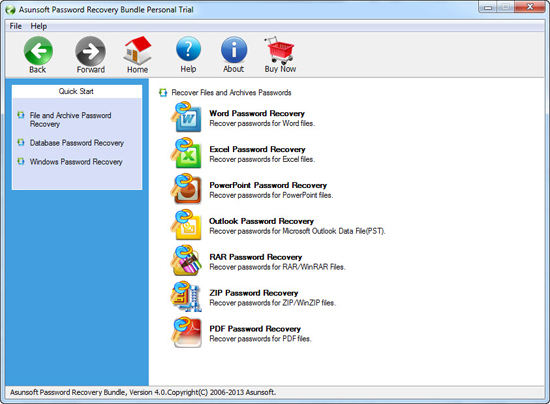
Step 3: After that, you add the target file to the software to recover its password simply by pressing the Open button and browse for the appropriate file. When the Open File dialog appears, you select the target file/archive and then click Open button to add.
Step 4: When it is added successfully, next you select an appropriate attack type to recover your password. It provides four types altogether and you can choose the most suitable one to shorten your recovery time greatly.
Tips: Brute-Force Attack will try all possible password combinations within specified length range.
Minimal password length: Set the minimum possible length of the password.
Maximal password length: Set the maximum possible length of the password.
If you remember nothing about your lost/forgotten password, you can select this one type.
Mask Attack: you can select this one when you still remember your lost/forgotten password partially. When you choose this type, remember to define a password mask to reduce the password recovery time.
Dictionary Attack: click Dictionary on the tab bar and simply select the desired dictionary file. In addition, you can select Smart mutations or Try all possible upper/lower case combinations option. you can select this one if you use regular words or phrases for password which come in the range of built-in dictionary.
Smart Attack: It will try all possible characters combinations including all printable characters to recover password for your file automatically and smartly.
Step 5: Click Start button to start password recovering. After a while, it will provide you an Opening Password. You can click Copy button to copy the password and use it to open your encrypted files.
Asunsoft Windows Password Recovery Bundle can also help you recover MS Access database password easily if you forgot it or lost it.

Step 1: Download and install Asunsoft Windows Password Recovery Bundle Advanced on a computer you can access as administrator first.
Step 2: Run the software, select Recover Passwords for Database option and further select the Access Password Recovery to start recovering.
Step 3: After that, you add the target file to the software to recover its password simply by pressing the Open button and browse for the appropriate file. When the Open File dialog appears, you select the target file/archive and then click Open button to add.
Step 4: When it is added successfully, next you select an appropriate attack type to recover your password. It provides four types altogether and you can choose the most suitable one to shorten your recovery time greatly.
Tips: Brute-Force Attack will try all possible password combinations within specified length range.
Minimal password length: Set the minimum possible length of the password.
Maximal password length: Set the maximum possible length of the password.
If you remember nothing about your lost/forgotten password, you can select this one type.
Mask Attack: you can select this one when you still remember your lost/forgotten password partially. When you choose this type, remember to define a password mask to reduce the password recovery time.
Dictionary Attack: click Dictionary on the tab bar and simply select the desired dictionary file. In addition, you can select Smart mutations or Try all possible upper/lower case combinations option. you can select this one if you use regular words or phrases for password which come in the range of built-in dictionary.
Smart Attack: It will try all possible characters combinations including all printable characters to recover password for your file automatically and smartly.
Step 5: Click Start button to start password recovering. After a while, it will provide you a Database File Password. You can click Copy button to copy the password and use it to open your encrypted files.
The above gives three classifications to persuade you that Asunsoft Windows Password Recovery can easily remove forgotten or lost Windows password and recover files/archives and database password easily. With this versatile tool in hand, you should never worry about password forgetting in your daily works.