 Best solutions for Password Recovery and Data Recovery
Best solutions for Password Recovery and Data Recovery
Best solutions for Password Recovery and Data Recovery"Is there a way can retrieve my forgotten Windows 7 user password? I have no reset disk or repair CD", some people said. If you unfortunately meet this problem, here are two simple methods for you.
Method One: Retrieve Windows 7 Login Password Using "lusrmgr.msc".
If you have another user account with admin privileges, including built-in account, you can easily retrieve other user accounts' password using Lusrmgr.msc. However, it may lead to lose access to some encrypted files. Before using this method, make sure that there is no important files in that user you want to reset its password.
1. Log on an user account which has admin privileges.
2. Click on Start, type lusrmgr.msc in the Run box (Press Win+R keys to open "Run Box") and click OK.
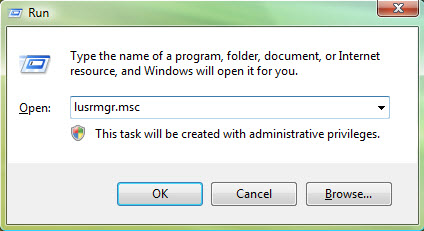
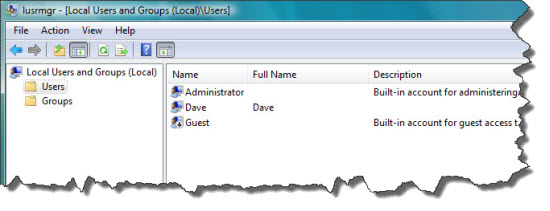
3. Local users and Groups dialog appears, open Users folder. Right-click an user account and select "set password", type a new password and confirm it, then click OK. You can logon that user account in next start.
Method Two: Retrieve Windows 7 with Net User Command.
This is another easy way which can be used to manage user information, such as changing user password, disabling/enabling user account. Note: Command must be run as administrator in windows 7.
1. Logon Windows 7 with an user account which has admin priviledges.
2. Click on Start, type cmd in the Run box or Search box and press Enter. If it prompts you to provide the admin information, give your information.

3. Type net user, all user accounts of your computer will be listed.
4. Type net user "UserName" "NewPassword", press Enter, then the user login password will be replaced as new one and you can login that user with it.

Method Three: Retrieve Any Windows 7 User Password with "Windows Password Reset Personal"
If the methods mentioned above cannot help you, you can use Windows Password Reset Personal, it not only can retrieve Windows 7 login password, but also can retrieve all user account passwords on Windows Vista/XP/2000.
1. Download "Windows Password Reset Personal" on anther computer and install it.
2. Run the software to create a Windows password reset disk with CD/DVD or USB. Insert a blank CD or USB, select burning option. Select the target drive from pull-down list, then click Begin burning button.
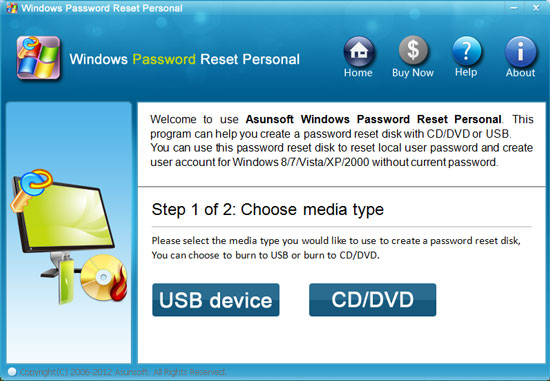
3. Insert the Windows password reset disk to your locked computer, boot the computer from CD/DVD or USB. Restart your computer an hit F2 or Delete immediately to get into BIOS SETUP table. Find out the Boot option and change the devices boot order, set CD/USB as the first boot device. Save and Exit, it will restart and boot from the password reset disk automatically.
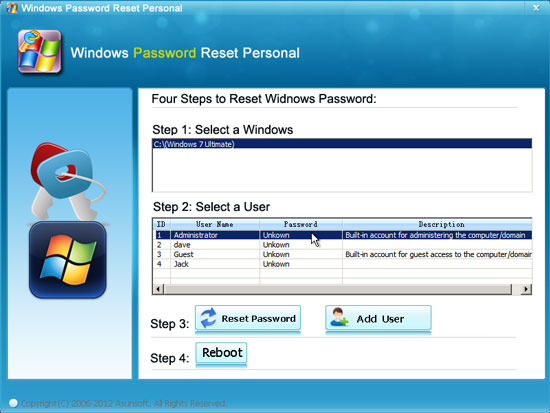
4. All users of Windows 7 will be displayed. Click one from list and click "reset password". When a confirm message pops up, click Yes. Click Reboot button, when a confirm message pops up, remove your reset disk and click Yes. After restarting you can logon that user without password.