 Best solutions for Password Recovery and Data Recovery
Best solutions for Password Recovery and Data Recovery
Best solutions for Password Recovery and Data RecoveryI forgot my password for my dell laptop Windows 7 and cannot to get in, how to reset password on a dell laptop/computer?
It is not quite correct when people said that they want to reinstall Windows 7 on a dell laptop/computer for forgetting the password. This article lists two available ways to reset dell password Windows 7, compatible with any serials of Dell laptop and computer. One is using "Asunsoft Windows Password Reset Professional", another is using a Windows 7 Repair Disk.
Solution One: Reset Any Windows Password with "Windows Password Reset Professional"
This is a universal Windows password recovery program that it can reset password for any versions of Windows operating system Such as Windows 7, Vista, XP, NT, Windows server 2008/2003/2000 etc. Compatible with any serials of Dell laptop and computer. When I forgot my Windows password on my dell laptop/desktop. It is a better way to reset windows 7 password on a dell laptop/desktop without losing any information of the machine.
1. Download the software and install it on another computer. Start the software to burn itself to a bootable CD/DVD or USB flash drive.
2. Insert the burned CD/DVD or USB to your locked laptop/computer, boot the computer from CD or USB.
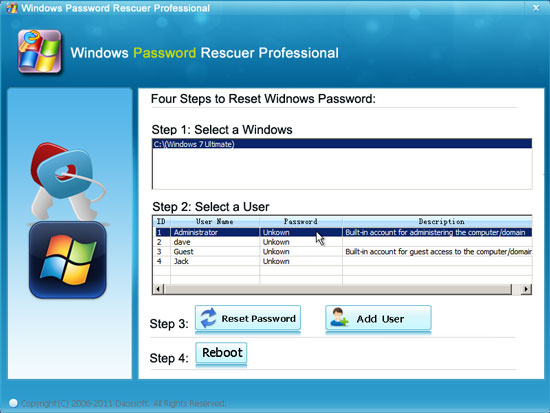
3. When the following interface appears, you can reset any user password easily. Only a few clicks. Click an user account and click "Reset Password", click Reboot. After restarting you can login Windows 7 without password. More details: How to use Windows Password Reset Professional
Solution Two: Reset Dell Password Windows 7 with A Windows Repair Disk
When forgot Dell laptop/computer password Windows 7, if you have a Windows 7 repair disk, comonly given by the laptop vendor. You can reset any Windows 7 password on your dell PC by going through the steps outlined below. The process is involved and requires some careful typing. Compare to using "Windows Password Reset Professional", this method is a little complex. Ask a computer expert to assist you if you lack experience in this area.
1. Insert your repair disk to the DVD-ROM. Use the DVD drive as the primary boot device by changing devices boot order on BIOS SETUP table. Refer to, How to Boot from CD/DVD, if you need.
2. When a message said "Press any key to boot from CD or DVD …" appears, hit a key to continue.
3. Select a language, a time and currency, and a keyboard or input method, and then click Next. Then get in Repair Mode.
4. Select an Operating System, click Next.
5. Select the Command Prompt option.
6. Identify the correct drive letter for your Windows installation. Typing the commands as below until you find the Windows installation folder.
dir C:\Win* {hit Enter}
dir D:\Win* {hit Enter}
dir E:\Win* {hit Enter}
...
7. Type commands:
cd /d Q:\windows\System32 {hit Enter}
move sethc.exe \ {hit Enter}
copy cmd.exe sethc.exe {hit Enter}
8. Reboot normally but hold down the Shift key permanently.
9. When challenged for a password, tap the Shift key five times. You will see a command screen.
10. Type these commands:
net user "user name" "new password" {hit Enter}
11. Log on under this account, using the new password.
12. Reboot the machine to get in Repair Mode again as Steps 1-6 above.
13. Then type commands as below:
cd /d Q:\windows\System32 {hit Enter}
copy \sethc.exe {hit Enter}
14. Reboot to login your Windows 7.


Windows Password Reset Professional

Only $27.95


Video Demo: