 Best solutions for Password Recovery and Data Recovery
Best solutions for Password Recovery and Data Recovery
Best solutions for Password Recovery and Data RecoveryForgot Windows 8 password? This problem becomes common that more and more people wanna use Windows 8 Operating System. Some people may forget to create a Windows 8 password reset disk for preventing password lost. It is the same as we do in Windows 7/Vista/XP, only a little differences.
As we know, we must create it before losing the user account password. This tutorial will show you how to create Windows 8 password reset disk with a USB Flash Drive. Before this please make sure that you have transfer the data in your USB to a secure place.
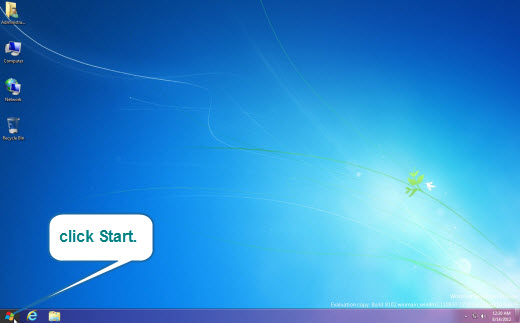
1. Logon Windows 8 with your user account. On the desk screen, click Start button on the bottom of left.
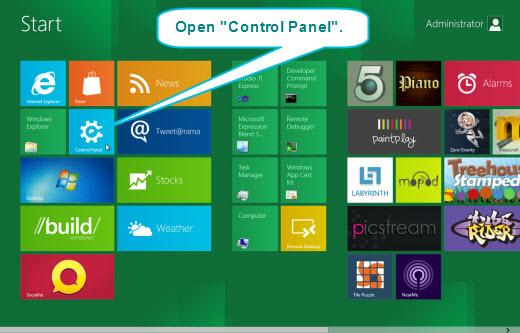
2. Click Control Panel from the Start menu.
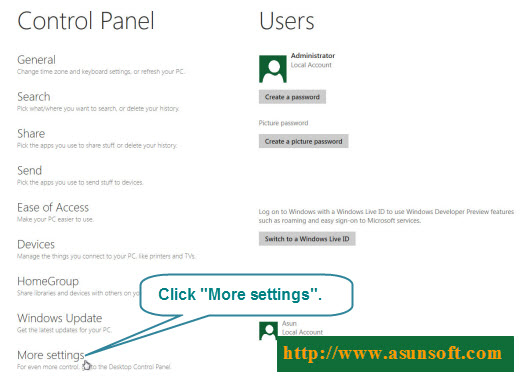
3. Control Panel appears, click More Settings.
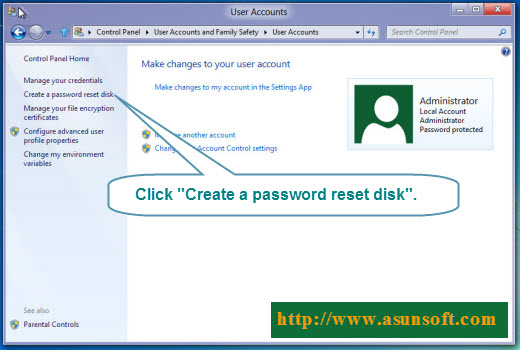
4. Open User Accounts and Family Safely >> User Accounts. Click Create a password reset disk on the left pane.
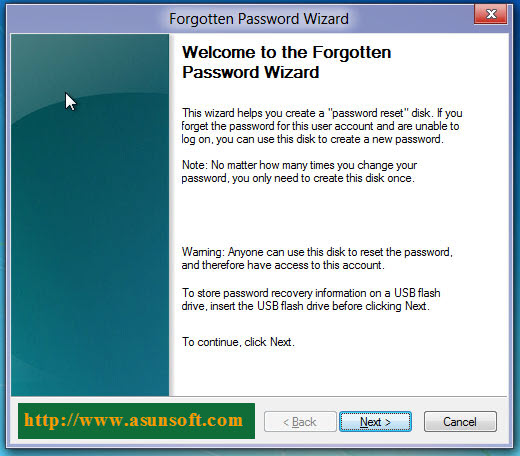
5. When a Forgotten Password Wizard pops up, click Next to continue.
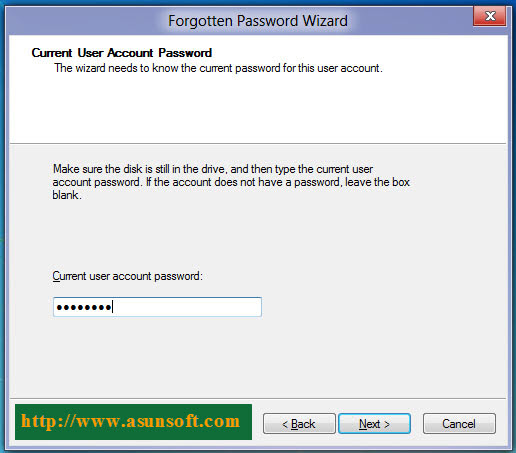
6. Type your current user account password and click Next.
7. Choose a drive you want to create a disk in. Here we the USB drive you just plug in. Click Next.

8. A few seconds later, process of creating password reset disk is 100% completed. Click Next.

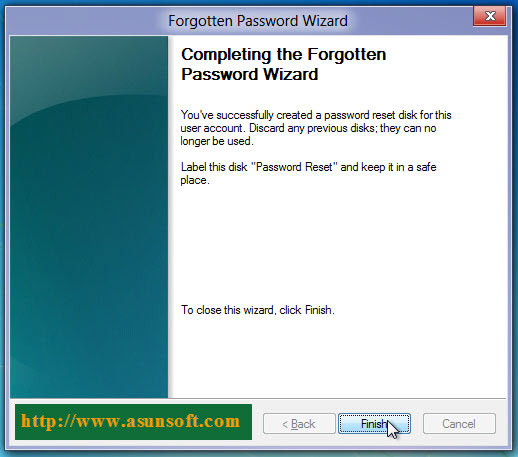
9. Click Finish to complete the Forgotten Password Wizard.
If you are a forgetful people, I highly recommend you to create a Windows 8 password reset disk when you create a password for your user account. It is free and easy. How to reset a forgotten Windows 8 password with password reset disk please click the link to to get more details: Reset Windows 8 Password.
If you lost your user account password and have no reset disk, you have to reinstall your system or use Asunsoft Windows Password Reset Advanced to reset it.