 Best solutions for Password Recovery and Data Recovery
Best solutions for Password Recovery and Data Recovery
Best solutions for Password Recovery and Data RecoveryHow to reset Windows Vitsa password when you forgot or lost it? Commonly we can use a Windows Vista password reset disk created before. If you forgot Vista Administrator password and it is the only one account, you can use a universal Windows password reset disk to reset it. This tutorial will show you how to create common and universal Windows password reset disk and use them to reset forgotten Vista password.
Section One: How to Create Windows Vista Password Reset Disk
To create Windows Vista password reset disk you can use a USB Flash Drive but not a external hard drive. This common vista password reset disk can only be created when you are loging. It means that you must create it before you losing the password.
 Create Common Windows Vista password reset disk.
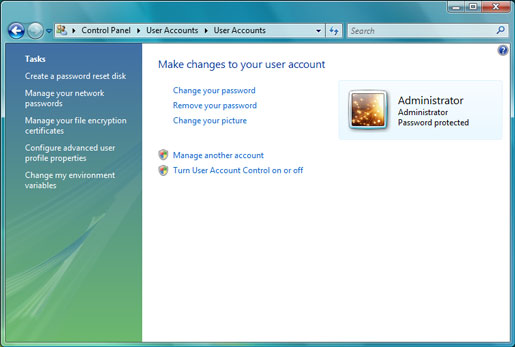
1. Plug in a writable USB Flash Drive. Click Start and open Control Panel > User Accounts > Administrator. Click Create a password reset disk.
Note: If you get a warning message of No Drive at this time, it means that you have not got a floppy disk or USB flash drive connected to your PC. You’ll need to do this before process.
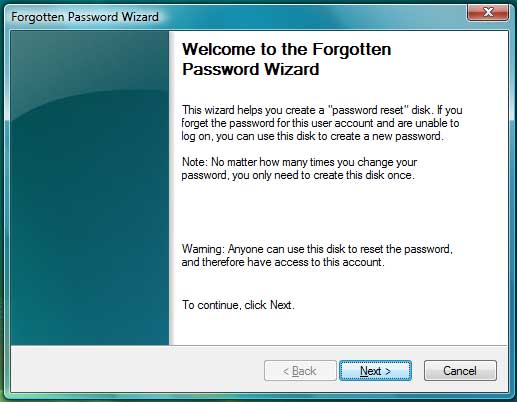
2. Forgotten Password Wizard appears, click Next.
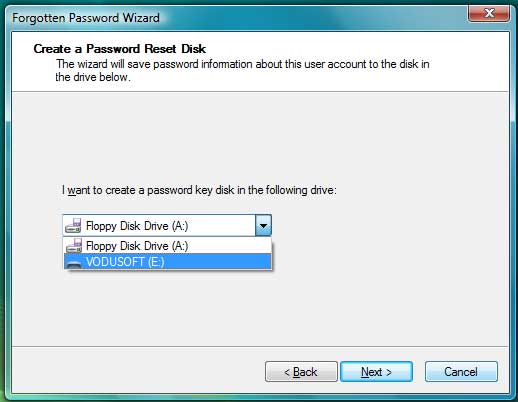
3. Select the portable media drive from pull-down list. Then click Next to continue.
4. Type your current account password in the box and click Next.

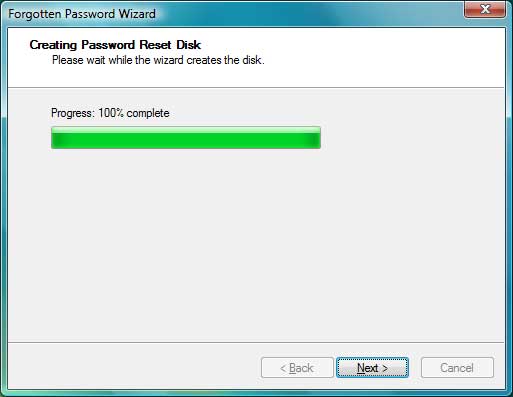
5. Please wait while the wizard creating the reset disk. When the progress indicator shows 100% complete, click Next.
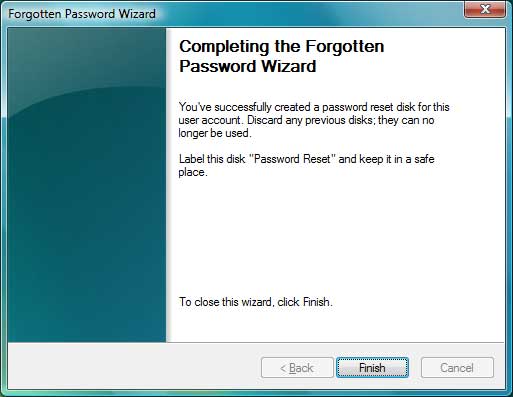
6. Now you can click Finish and remove your USB flash drive from your computer. And store it in a safe place.
Section Two. Reset Vista Password with Windows Vista Password Reset Disk.
When you forgot Windows Vista password, you can use this disk to reset it easily. But note that it cannot be used to reset other user account password. Please see how to reset Windows Vista administrator password with Vista password reset disk. It is very easy.
Step-by-step guide to reset Vista user account password
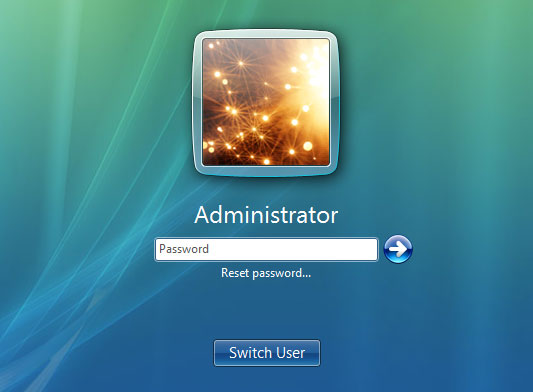
1. Start/Restart you computer, plug in your Windows Vista password reset disk and click the link, "Reset Password", under the password box.
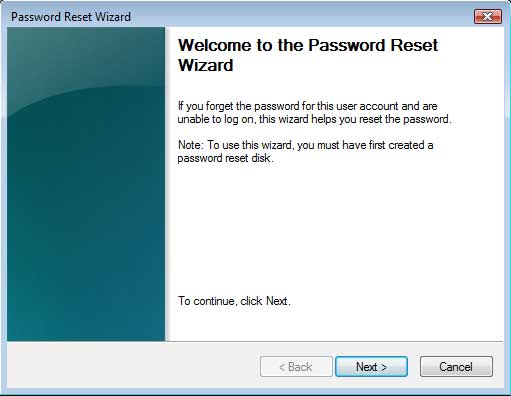
2. When the Password Reset Wizard appears, click NEXT.
3. Select the drive name from the pull-down list, click NEXT.
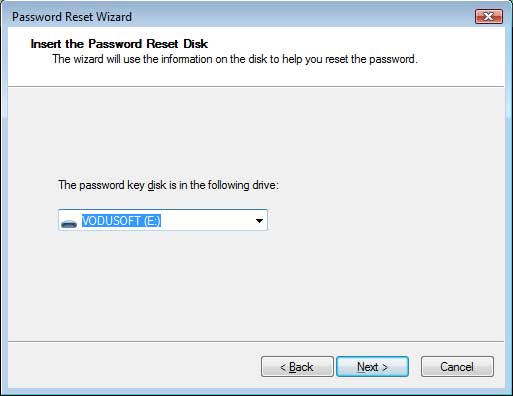
4. Type a new password and confirm it again, type a password hint or not, click NEXT.
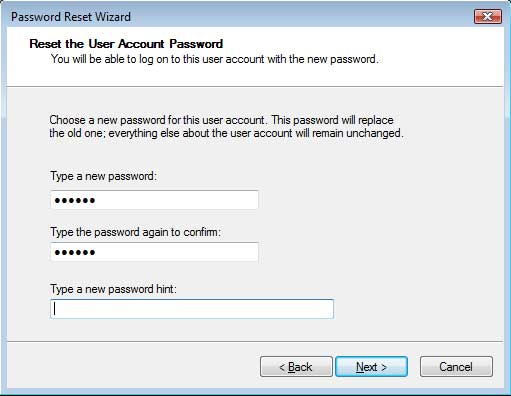
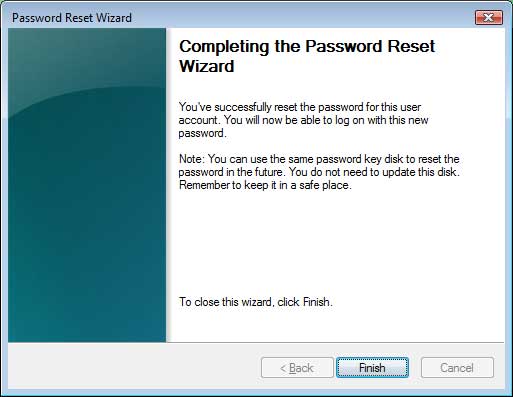
5. Click Finish to complete the Wizard. Then you logon Windows Vista administrator with new password.
Section Three: Create A Universal Windows Password Reset Disk.
The universal Windows Password Reset Disk can be used to reset administrator and other user accounts password for Windows 7, Vista, XP, Windows server 2008/2003/2000. It has no limitation. People who forgot/lost Windows password can reset it with the help of universal Windows password reset disk. Now see how to create it.
Step-by-step guide to create a universal Windows password reset disk
First, purchase the full version of Asunsoft Windows Password Reset Professional, install it on anther computer you have access to. Note that you have to do this on another PC because you lost password of your current PC. After you click Buy Now button on our website, it will navigate you to another payment platform, Regnow, which is one of the most popular e-commerce platform of world. You will receive a e-mail with download link in it when you successfully process the payment. The procedure is easy and secure.
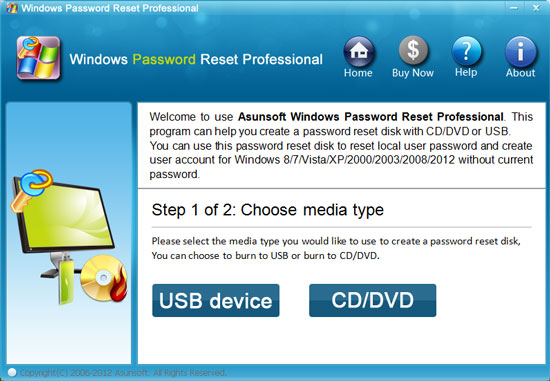
After successfully installing Windows Password Reset Professional, run it to create a universal Windows password reset disk.
Option 1: Create a universal Windows password reset disk with CD/DVD:
1. Insert a writable CD/DVD disc to CD/DVD-ROM drive. Choose Burn to CD/DVD
2. Select the CD/DVD-RW drive name from the pull-down list. Hit Burn button to start burning.
3. It will successfully complete burning in one minute.
Option 2: Create a universal Windows password reset disk with USB Flash Drive:
1. Plug in a writable USB drive to your computer. Choose Burn to USB
2. Select the USB drive name from pull-down list. Hit Burn button to start burning.
3. It will successfully complete burning in one minute.
Section Four: How to Reset Windows Vista Password with Universal Password Reset Disk
Universal Windows Password Reset Disk is powerful that it can be used to reset forgotten Windows password without data lost or setting changed for all versions of Windows system. What's more, you also can use it to add new user account to Windows Operating System offline. Now let's see how to reset Windows Vista password with Universal Windows Password Reset Disk.
Reset any Vista user account password with "universal Windows password reset disk"
If you forgot Windows Vista password, insert the disk to your computer which you want to reset password on and set it to boot from CD/DVD-ROM or USB drive.
If you create a Windows password reset disk with CD/DVD, please refer to How to boot from CD/DVD-ROM.
If you create a Windows password reset disk with USB flash drive, please refer to How to boot from USB drive.
Option 1: Reset forgotten Windows Vista password.
After the computer booting from the reset disk, Windows Password Reset Professional will run automatically and display a friendly window.
1. All users account of Windows Vista will be listed. Click an user account.
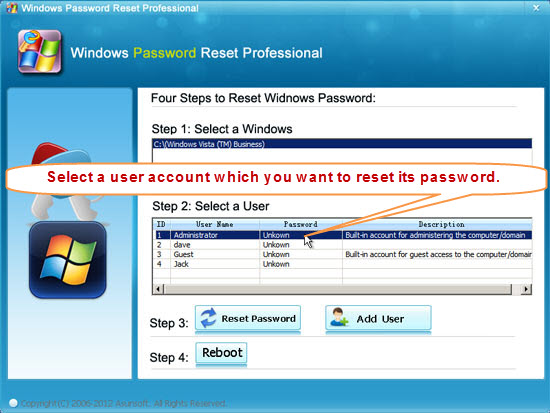
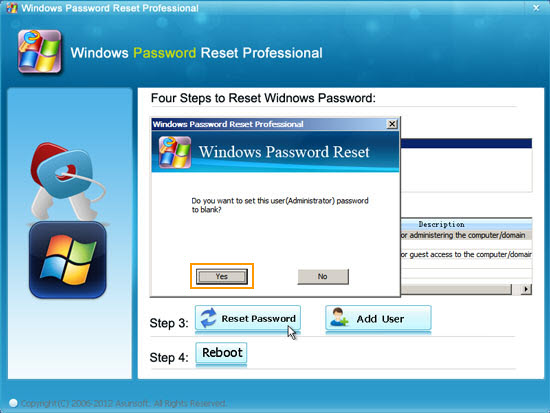
2. Click Reset Password. The program will prompt you that the password will be reset as blank. Click Yes to continue.
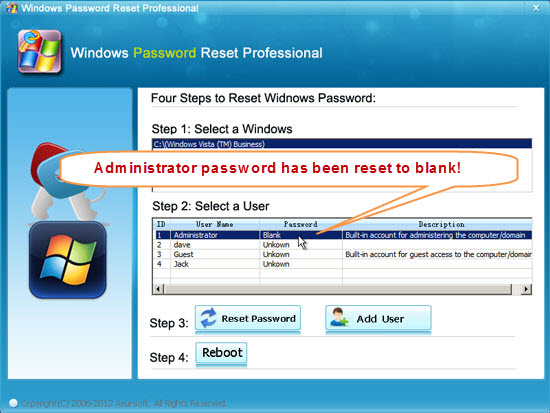
3. Now you can see the administrator account password has been reset and show blank.
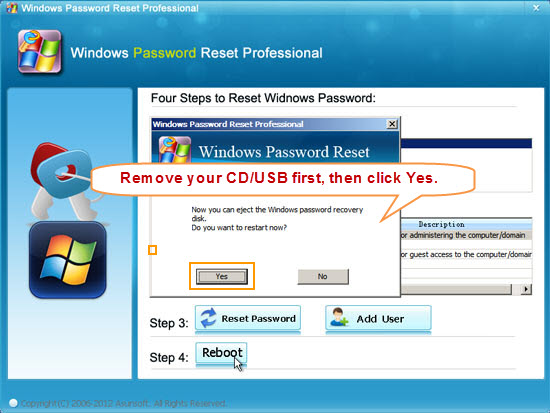
4. Click Reboot. When a confirm massage pops up, eject the Windows Password Reset disk first, and click Yes to restart.
Option 2: Add New Administrator Account to Windows Vista Offline.
This universal Windows Password Reset Disk has another useful function for people who forgot Windows Vista password is to create new administrator account offline. It is very simple that you just need to click Add User button, when a dialog appears, type a new user name and password, click OK.
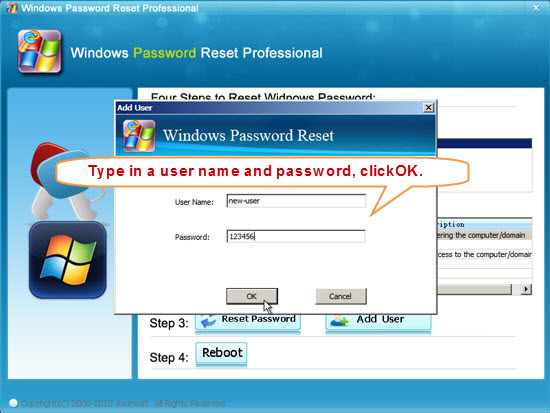
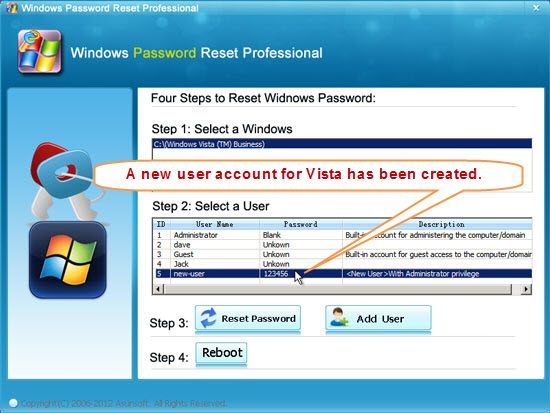
Now you can see a new user has been add to Windows Vista with new password "123456". After rebooting you can login this account with new password. Then you can reset other Vista user account password as well after login.


Windows Password Reset Professional
Only $27.95


Video Demo: