 Best solutions for Password Recovery and Data Recovery
Best solutions for Password Recovery and Data Recovery
Best solutions for Password Recovery and Data Recovery
September 18, 2012 3:26 PM / Posted by Geolin Lee to Password Recovery
Follow @GeolinLee
When I lost my Windows 7 password, how do I do? This article outlines two ways to reset a windows 7 password with USB Flash Drive and use them to reset Windows 7 password instantly. USB is a portable device due to its small size and simple usage. There are two types of USB flash drive, one of them can be used to store any data and files, another not only be used to store data but also a bootable device. The later is useful that we can import/burn a boot program on it and use it to boot any computer which has USB port.
Now see how to reset the lost windows 7 password with bootable USB flash drive.
Tip 1: Free Reset a Windows 7 Password with USB Flash Drive
1. Open control panel > user accounts, select an user which you want to create a Windows 7 password reset disk.
2. Plug in a bootable USB flash drive, click create a password reset disk.
3. A password reset wizard appears, follow the wizard to complete the creating. It is easy. More details....
When you lost Windows 7 login password, this USB can help you a lot. See how to use it.
1. Plug in the USB flash drive.
2. Start your computer, once you login failed, it will show you a link to reset a lost password. Click the link "Reset Password"
3. A password reset wizard appears, then follow the wizard to reset your lost password.
Note: This password reset usb is available only in the situation that you must create it before you losing password.
Tip 2: Universal Reset a Windows 7 Password with USB Flash Drive.
A password Recovery usb supports all versions of Windows 7 operating system, and it is available at any time no matter how long and complex your password is. First, you need to download and install "Asunsoft Windows 7 Password Reset" on "anther computer". Then run the software to create a Windows 7 password recovery disk to USB Flash Drive.
1. Plug in a writable USB Flash Drive and choose USB Device.
2. In second step, select you drive name from the pull-down list.
3. Click Begin Burning button, the burning process will start.
4. Burning completed successfully, take out you USB Flash Drive.
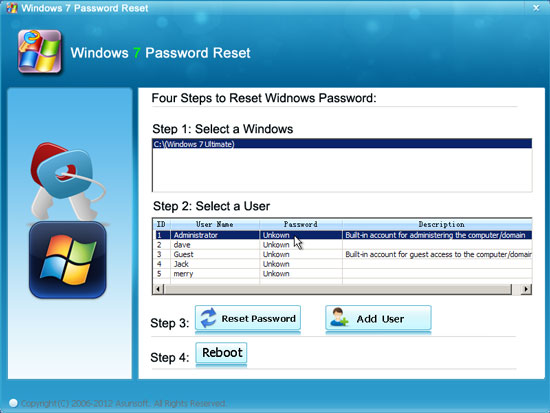
Now transfer the USB to your locked computer to recover lost Windows 7 password. First, you need to set computer to boot from USB Drive. Then "Asunsoft Windows 7 Password Reset" will start automatically and display a friendly interface.
1. Click an user account from the user list. All user accounts of Windows 7 will be displayed.
2. Click Reset Password. Click Yes when a confirm dialog pops up, then you can reset other users' password as well.
3. Click Reboot. When a dialog pops up, remove the USB, and click Yes to restart your computer then you can login that user without password.
Related Articles:


Video Guide for Windows 7 Password Reset:
Video Guide for Windows 8 Password Recovery: